Wifi Radio Configuration
Setting The Network Name For a Robot:
Setting up your robot’s network is a required step for having wireless robot connectivity, and there are more features than you might think. Finding your robot at competition, preventing other people from connecting to your robot, enabling a firewall for more security, and even more can all be accomplished.
Inital Setup
The first step for setting up your robots OpenMesh router is to download the FRC Radio Configuration Tool on a Windows 10 device. Once you open the tool, click through the setup utility until it is fully installed. Before you open the application, make sure to disable all other network adapters in Control Panel besides your ethernet adapter. The FRC Radio Configuration tool is notoriously bug filled and having more than one network adapter enabled will cause compiling errors.
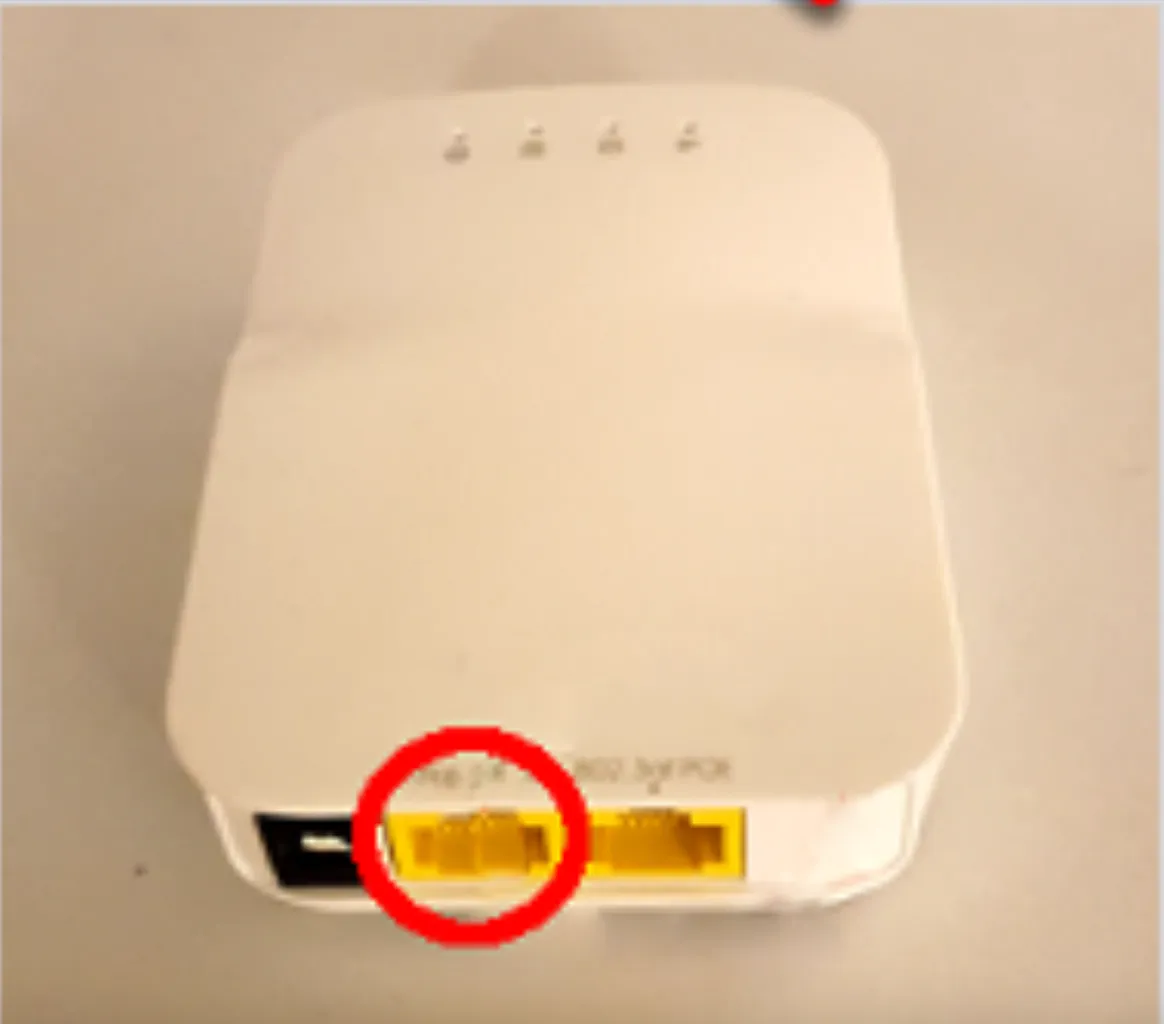
After you have installed and set up the FRC Radio Configuration application, plug an ethernet cable into the ethernet port closer to the power adapter on your radio and the other end to your PC. Next, open the application and ensure that you only see ethernet as one of the connection options. Now turn on your robot and click “OK” on your PC.
The fields that you would want to fill out are the team number, robot name, and perhaps making a WPA key which would necessitate a password to connect to your robot. It is not recommended to enable the firewall as it leads to more complications with deploying code. The software will automatically combine your team number and robot name to make the SSID with the TEAMNUMBER_ROBOTNAME format. To deploy the changes, click the “Configure” button and you should see a similar popup on the left hand side of the screen as the one below. If it all goes well, you should see an orange progress bar and then a success message when it is complete. You can now disconnect from the robot’s ethernet and then power cycle the radio in order for the Wifi light to update.
Problems and Solutions
It is likely that you will run into error while trying to deploy the changes, the best thing to do is to JUST KEEP TRYING AGAIN AND AGAIN! If you run into error messages, try the following: Ensure that you have a complete connection on both sides of the ethernet cable and perhaps try using a different cable. Ensure that you are plugged into the right ethernet port on the radio. Power cycle your PC and radio. If none of the following work, try using a different PC.